How to Connect Local Active Directory to Microsoft Entra ID — Step-by-Step Guide
 Written by adminSeptember 23, 2026
 Author: Hudson Garden IT
Category: Microsoft 365 / Infrastructure / Active Directory
Recommended audience: IT administrators, business owners, and technical teams managing Windows Server, Active Directory, and Microsoft 365 environments.
Connecting a local Active Directory environment to Microsoft Entra ID is one of the most important steps for organizations that want to modernize their identity infrastructure, use Microsoft 365 more efficiently, and provide users with a better sign-in experience across cloud services.
In this technical guide, we will explain how to synchronize an on-premises Active Directory Domain Services environment with Microsoft Entra ID using Microsoft Entra Connect Sync. The goal is to allow local Active Directory users, groups, and selected identity attributes to appear in Microsoft Entra ID, making it possible to use the same corporate identity for Microsoft 365 and other cloud-based services.
This guide is intended as a practical step-by-step reference. It does not replace a full identity assessment, but it provides a solid foundation for small and mid-sized businesses planning to move into a hybrid identity model.
1. Understanding the Goal
The objective is to connect a local Windows Server Active Directory environment to Microsoft Entra ID, previously known as Azure Active Directory, so that users can access Microsoft 365 and other cloud resources using their existing corporate identity.
In a typical environment, users already sign in to local computers, file servers, printers, and internal resources using Active Directory credentials. By synchronizing those identities to Microsoft Entra ID, the organization can extend that same identity model to cloud services such as Exchange Online, SharePoint Online, OneDrive, Microsoft Teams, and other Microsoft 365 services.
It is important to understand that Microsoft Entra ID is not the same thing as a traditional local Active Directory domain controller. It does not replace Group Policy, traditional LDAP authentication, Kerberos-based local domain authentication, or legacy domain services. Instead, it provides a cloud identity platform that integrates with Microsoft cloud services and many modern applications.
2. Recommended Architecture
A common architecture includes the following components:
- Local Active Directory Domain Services running on Windows Server.
- A verified public domain name, such as company.com.
- A Microsoft 365 tenant or Microsoft Entra ID tenant.
- A dedicated Windows Server to install Microsoft Entra Connect Sync.
- Synchronization from local Active Directory to Microsoft Entra ID.
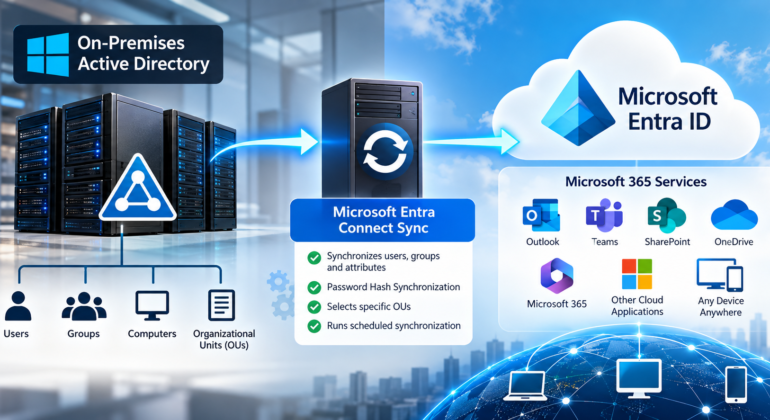
- Password Hash Synchronization, allowing users to sign in to Microsoft cloud services using the same password used in the local domain.
The recommended flow is:
Local Active Directory → Microsoft Entra Connect Sync → Microsoft Entra ID → Microsoft 365 Services
For many small and mid-sized businesses, this model provides a practical and reliable hybrid identity foundation without requiring a complex federation infrastructure.
3. Before You Start
Before installing Microsoft Entra Connect Sync, verify that the local Active Directory environment is healthy. This step is extremely important because directory synchronization will expose existing identity problems that may have gone unnoticed in the local environment.
Review the following requirements before continuing:
- A working local Active Directory domain.
- Administrative access to the local Active Directory environment.
- Administrative access to Microsoft Entra ID or Microsoft 365.
- A verified public domain in Microsoft 365 or Microsoft Entra ID.
- A dedicated Windows Server for Microsoft Entra Connect Sync.
- Reliable internet connectivity from the synchronization server.
- Updated Windows Server patches and TLS 1.2 enabled.
- Clean user attributes, especially userPrincipalName, proxyAddresses, mail, and displayName.
Whenever possible, avoid installing Microsoft Entra Connect Sync directly on a domain controller. A dedicated domain-joined member server is usually a cleaner and more secure design. This server becomes a critical component of the identity infrastructure, so it should be protected, monitored, patched, and backed up properly.
4. Verify the Public Domain in Microsoft 365 / Microsoft Entra ID
The first technical step is to confirm that the organization owns the public domain that will be used for user sign-in. For example, if users will sign in as user@company.com, then company.com must be verified in Microsoft 365 or Microsoft Entra ID.
To verify the domain:
After verification, the domain can be used as the primary sign-in suffix for cloud identities.
5. Prepare the Local Active Directory UPN Suffix
Many older Active Directory environments use an internal domain name such as company.local or corp.local. However, for Microsoft 365 and Microsoft Entra ID, users should normally sign in with a public, verified domain such as user@company.com.
To prepare this, add the public domain as an alternative UPN suffix in Active Directory:
After adding the UPN suffix, update users so their sign-in name matches the public domain. For example:
Before:
jsmith@company.local

Recommended:
jsmith@company.com
This creates a more professional and consistent sign-in experience for Microsoft 365 and cloud applications.
6. Clean Active Directory Before Synchronization
Before synchronization, review Active Directory for duplicate, invalid, or incomplete attributes. Common issues include duplicate email addresses, invalid characters, old disabled accounts, missing display names, and users with incorrect UPN values.
Recommended checks include:
- Verify that each user has a unique UPN.
- Verify that email addresses are unique.
- Remove or separate old test accounts.
- Review disabled users.
- Confirm that service accounts are not synchronized unless there is a specific reason.
- Organize users into clear Organizational Units.
A clean directory reduces synchronization errors and prevents unnecessary troubleshooting after the first sync.
7. Create a Pilot Organizational Unit
Before synchronizing the entire directory, it is a good practice to start with a small pilot group. Create an Organizational Unit called something like:
OU=CloudSyncPilot
Move two or three test users into this OU. This allows the administrator to validate synchronization, user sign-in, licensing, and Microsoft 365 access before expanding the configuration to the entire organization.
8. Download Microsoft Entra Connect Sync
Microsoft Entra Connect Sync should be downloaded directly from Microsoft. Avoid downloading identity synchronization tools from third-party websites.
Install it on the dedicated synchronization server using an account that has local administrator rights on that server. During the installation, you will also need credentials for Microsoft Entra ID and credentials with the appropriate permissions in the local Active Directory environment.
Before installation, make sure the Windows Server is fully updated and has the required security settings, including TLS 1.2 support.
9. Choose Express or Custom Installation
Microsoft Entra Connect Sync provides two main installation paths:
- Express Settings: Recommended for simple environments with a single Active Directory forest and standard password hash synchronization.
- Custom Settings: Recommended when the organization needs OU filtering, multiple forests, specific sign-in options, group filtering, custom attributes, or more control over the synchronization scope.
For most small business environments, Custom Settings are often preferred even when the environment is simple, because they allow the administrator to control which Organizational Units are synchronized. This helps avoid syncing unnecessary service accounts, disabled users, test accounts, or administrative accounts.
10. Select the Sign-In Method
For many small and mid-sized organizations, the recommended sign-in method is:
Password Hash Synchronization
With Password Hash Synchronization, users can use the same password they use in the local Active Directory environment to access Microsoft cloud services. This does not mean that Microsoft receives the actual plain-text password. Instead, the password hash synchronization process allows Microsoft Entra ID to validate the cloud sign-in using synchronized password hash data.
Depending on the organization’s needs, Seamless Single Sign-On may also be enabled to improve the sign-in experience for domain-joined devices on the corporate network.
For more complex environments, other authentication models may be evaluated, but Password Hash Synchronization is usually the simplest and most resilient option for many businesses.
11. Connect to Microsoft Entra ID
During the Microsoft Entra Connect Sync wizard, you will be asked to sign in to Microsoft Entra ID. Use an account with the appropriate administrative role, such as a Hybrid Identity Administrator or Global Administrator, depending on the environment and security policy.
Best practice: do not use a personal daily-use administrator account for long-term operations. Administrative accounts should be protected with multifactor authentication and should follow the organization’s privileged access policy.
12. Connect to Local Active Directory
The wizard will also request access to the local Active Directory forest. Provide credentials with the required permissions to read directory objects and configure the synchronization account.
After connecting to the local forest, confirm that the correct domain appears in the wizard. If the environment has multiple domains or forests, review the design carefully before continuing.
13. Configure OU Filtering
If you selected Custom Settings, configure OU filtering. This is where you choose which Organizational Units will synchronize to Microsoft Entra ID.
For an initial pilot, select only the pilot OU. For example:
CloudSyncPilot
After the pilot is validated, the administrator can return to the configuration wizard and add more OUs gradually.
Avoid synchronizing unnecessary objects. In many environments, the following should usually be excluded unless there is a specific technical reason:
- Domain administrator accounts.
- Service accounts.
- Old disabled accounts.
- Temporary test accounts.
- Local-only accounts that do not need cloud access.
14. Start the First Synchronization
At the end of the wizard, Microsoft Entra Connect Sync can start the initial synchronization. For a pilot, this first sync should be small and easy to validate.
After the synchronization completes, sign in to the Microsoft Entra admin center and check the users list. The pilot users should appear as synchronized from the local directory.
On the synchronization server, the following PowerShell commands are commonly used for administration:
Import-Module ADSync

Get-ADSyncScheduler

Start-ADSyncSyncCycle -PolicyType Delta

Start-ADSyncSyncCycle -PolicyType Initial
Use Delta synchronization for normal incremental changes. Use Initial synchronization only when a full synchronization is required.
15. Verify the Users in Microsoft Entra ID
After the first synchronization, verify the following items in Microsoft Entra ID:
- The user appears in Microsoft Entra ID.
- The username matches the expected UPN, such as user@company.com.
- The user shows as synchronized from on-premises Active Directory.
- The user attributes look correct.
- The user can be assigned a Microsoft 365 license.
- The user can sign in to Microsoft 365 after password synchronization is complete.
After validation, assign the appropriate Microsoft 365 license to the user and test access to services such as Outlook, Teams, OneDrive, and SharePoint.
16. Test Password Synchronization
To test password synchronization, use a pilot user account. Change the user’s password in local Active Directory and wait for the synchronization cycle to complete. Then try signing in to Microsoft 365 with the new password.
If the login works as expected, Password Hash Synchronization is functioning properly.
If the login does not work, check the following:
- Confirm that the user is inside a synchronized OU.
- Confirm that the user has a valid UPN.
- Confirm that the Microsoft 365 license is assigned.
- Review synchronization errors in Microsoft Entra ID.
- Review the Synchronization Service Manager on the Entra Connect server.
- Confirm that the server has internet connectivity.
17. Expand Synchronization Gradually
Once the pilot users are working correctly, expand the synchronization scope gradually. Add more Organizational Units in stages rather than synchronizing the entire directory at once.
A staged approach helps identify problems early and reduces the risk of synchronizing unwanted accounts to the cloud.
18. Common Synchronization Issues
Some of the most common issues include:
- Duplicate proxyAddresses: Two users have the same email address or alias.
- Invalid UPN: The user is still using an internal suffix such as company.local.
- Attribute conflicts: A cloud-only user already exists with the same username.
- Disabled or old accounts: Legacy accounts were included in the synchronization scope.
- Licensing issues: The user synchronized correctly but does not have a Microsoft 365 license assigned.
- Password issues: Password Hash Synchronization has not completed or is not enabled correctly.
Most synchronization problems are related to directory hygiene. Cleaning Active Directory before deployment is one of the best ways to prevent errors.
19. Security Recommendations
After connecting Active Directory to Microsoft Entra ID, identity security becomes even more important. A compromised identity may now affect both local and cloud resources.
Recommended security practices include:
- Enable multifactor authentication for administrators.
- Use separate administrator accounts instead of daily-use accounts.
- Avoid synchronizing unnecessary administrative accounts.
- Use Conditional Access policies when available.
- Monitor risky sign-ins and suspicious activity.
- Keep the Microsoft Entra Connect server patched.
- Restrict access to the synchronization server.
- Document the synchronization scope and configuration.
- Back up the server and keep recovery procedures available.
Identity synchronization is not only a convenience feature. It becomes part of the organization’s security foundation.
20. Maintenance After Deployment
After deployment, the environment should be monitored regularly. Administrators should periodically review synchronization health, sign-in activity, user provisioning, and Microsoft 365 licensing.
Recommended maintenance tasks include:
- Review synchronization errors weekly.
- Keep Microsoft Entra Connect Sync updated.
- Review OU filtering after organizational changes.
- Document new domains, aliases, and email changes.
- Monitor administrator accounts closely.
- Review Microsoft 365 license assignments.
- Test password synchronization periodically.
21. Final Result
After completing this process, the organization will have a hybrid identity environment where local Active Directory users are synchronized to Microsoft Entra ID. Users can access Microsoft 365 and cloud resources using their corporate identity, while the IT team continues managing users from the local Active Directory environment.
This approach is especially useful for companies that still depend on local servers, local computers, file shares, printers, and traditional domain services, but also want the benefits of Microsoft 365, cloud collaboration, and modern identity management.
Need Help Connecting Active Directory to Microsoft 365?
Hudson Garden IT provides onsite and remote support for Active Directory, Windows Server, Microsoft 365, networking, firewalls, Wi-Fi, VPN, backups, migrations, infrastructure, structured cabling, IP cameras, and small business IT environments.
If your organization needs assistance planning, configuring, or troubleshooting a hybrid identity environment, Hudson Garden IT can help you evaluate the current infrastructure, prepare Active Directory, configure Microsoft Entra Connect Sync, and validate Microsoft 365 access.
Hudson Garden IT
Professional IT Support and Infrastructure Services
Website: www.hudson-it.com
Email: david.silva@hudson-it.com
Phone: +1 (201) 657-2383